
 Minecraft
 Hytale
 Discord Bot Hosting
 Minecraft Hosting
 Hytale Hosting
Minecraft Server Troubleshooting Guide: Fix Lag, Crashes & Errors
Learn about frequent problems that can affect your Minecraft server’s performance and find structured guidance on how to troubleshoot and resolve them.

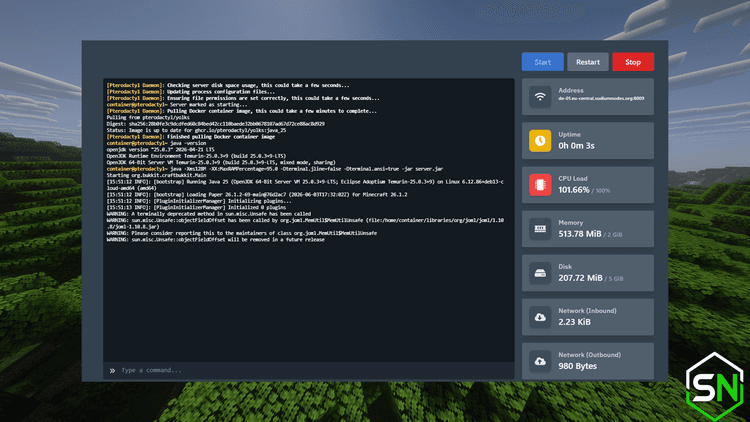
Maintaining a Minecraft server can be really fun, but you may occasionally run into a bug that can cause your server to lag or even crash. Or you just purchased a server and it refuses to start.
This article will be covering the most common issues with your Minecraft server, as well as the solutions and how to prevent them from happening again.
Diagnosing your Minecraft server
Before attempting any fix, it’s important to identify the root cause of the problem. Most Minecraft server issues can be diagnosed using the server console and log files.
To do that, you will have to head over your console and frequently monitor for any log indicated in red. If you don’t see anything, you should probably find the issue before your server started lagging/turned off.

The next step is to read the problem in detail. The issue is displayed in plain English usually on the first line.
| Symptom | Cause | Solution |
| Failed to load eula.txt | No file called eula.txt | Create an eula.txt file and accept the Minecraft EULA |
| Outdated Java version | Outdated JRE | Update Java version |
| “Can’t keep up!” warnings | Outdated or overloaded hardware/software | Upgrade hardware and allocate more RAM |
| Out of Memory (OOM) errors | Minecraft server doesn’t have enough memory | Allocate more RAM to your Minecraft server or reduce plugin count |
Common issues with your Minecraft server
Once you’ve successfully identified your issue, the next step is to find the solution and apply it.
Failed to load eula.txt
You may encounter this issue when you first try hosting your server, and it can be easily overlooked. Your Minecraft server won’t start unless you accept Minecraft’s EULA.
Solution: go to your file manager and create a file called eula.txt. Copy and paste the following content:
eula=true
And finally save the file.
Once you’ve done this, your Minecraft server should start successfully.
Outdated Java version
This error occurs when the Java version you’re using is outdated and incompatible with your Minecraft server, making it impossible to start.
To fix this server error, you will have to update your Java version.
Go to the panel and select your server.

Go to the Startup tab and change the Docker image to the minimum Java version specified by the error.

Once you start your server, it should work fine.

“Can’t keep up!” warnings
These warnings are displayed when the server’s TPS goes low. When this happens, you may notice massive server-side lag spikes and severe stuttering.
For this one, there are a few solutions you could consider:
- Change your server software: if you’re still using Spigot, we recommend you use Paper or Purpur instead. Check out Spigot vs Paper vs Purpur: What server software you should choose in 2026 for more information.
- Use a better CPU: sometimes, old CPUs (like Intel 4th gen) can have a negative impact on performance. Using a modern CPU like the AMD Ryzen series or the Intel Core 10th gen series with DDR4 RAM or later can significantly boost performance.
- Allocate more RAM: this ensures the Minecraft server’s memory isn’t the bottleneck. Also see How Much RAM Does a Minecraft Server Need? (1–100 Players Guide). If you’re using SodiumNodes, all it takes is to purchase an upgrade.
Out of Memory (OOM) errors
If you encounter OOM errors, it probably means you didn’t allocate enough RAM to your Minecraft server.
Potential solutions would include:
- Reduce plugin count: your server might have too many plugins compared to the amount of RAM you’ve allocated to your Minecraft server. Removing some unused plugins can provide a good alternative to buying more memory.
- Allocating more RAM or upgrading your plan: this ensures your Minecraft server gets enough space for data to get stored in memory. If you’re on SodiumNodes, you can do this easily by upgrading your plan.
If you want to estimate how much RAM your Minecraft server actually needs, consider using our Minecraft server RAM calculator.
Port forwarding issues
If you’re self-hosting a server, and can join your Minecraft server from your computer’s private IP address, but can’t join from your public IP address, it means that port forwarding hasn’t been configured correctly.
To fix this issue, go to your router’s gateway and make sure your Minecraft server port (usually 25565 for Java, 19132 for Bedrock) is forwarded so that external users can join.
If you’re still not able to join, your public IP address may be behind CGNAT, and you might have to contact your ISP to disable the feature.
Keep in mind that port forwarding comes at a security risk, DDoS attacks, which might disrupt your Internet access.
If you don’t want to deal with risks related to port forwarding, it’s a wise idea to use a Minecraft hosting provider like SodiumNodes.
Plugin conflicts
When it comes to Spigot servers in general, plugin conflicts are quite overlooked, even if they make a difference. Plugin conflicts can occur when two or more plugins attempt to modify the same game mechanics, register identical commands, or are incompatible with each other.
If your server suffers from plugin conflicts, you may notice:
- Server crashes during startup: your server can’t enable all the plugins successfully, leading to crashes or broken in-game commands.
- Errors after installing a new plugin: you may notice errors when adding new plugins.
- Features suddenly stop working: commands might throw an internal error viewable in the console.
To identify the conflicting plugin, disable recently installed plugins and re-enable them one at a time until the issue reappears. You should also check the console for compatibility errors and make sure all plugins are updated to versions that support your server software.
Conclusion
Minecraft server problems can be disruptive and can ruin the fun, but by knowing the common issues and how to solve them, as explained in this article, your Minecraft experience will remain fun and creative as it should be.
Your Minecraft server, ready in seconds.
Why wait any longer?
With SodiumNodes, your server is deployed is 60 seconds away from being yours.
DDoS protection: Stay online during raid attacks.
AMD CPUs: No lag, even with several mods or plugins.
Custom Mod Support: Run Fabric, Forge, or Paper mods/plugins.
Friendly customer support: Real answers in under 10 minutes.