
 Minecraft
 Hytale
 Discord Bot Hosting
 Minecraft Hosting
 Hytale Hosting
Minecraft server.properties Guide: Optimize Your Server & Fix Lag
Learn everything about the Minecraft server.properties file, including all available settings, how to configure them, and the best performance optimizations for smoother server gameplay.

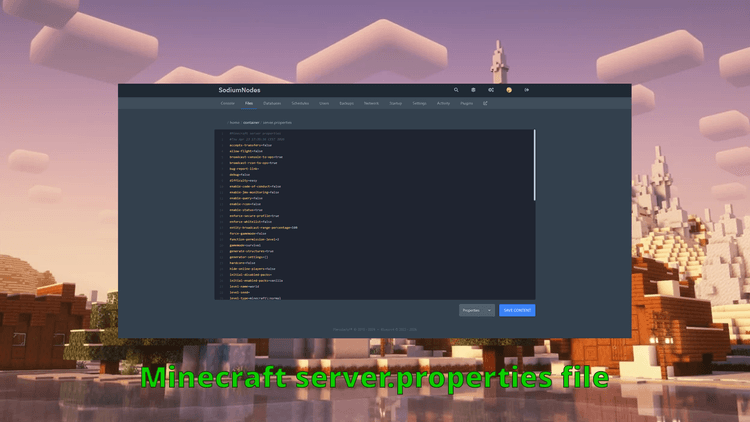
The server.properties configuration file in Minecraft stores important settings for your Minecraft server. It is important to understand this file properly when hosting a Minecraft server, as it is the file that controls your Minecraft server’s behavior, performance, and gameplay experience.
This article will break down every property in detail, including what it does and how to change it.
Overview of the server properties file in Minecraft
Here is an overview of the server.properties file in Minecraft and what each setting does:
| Name | Description | Introduced in version |
| accepts-transfers | Determines whether your Minecraft server accepts incoming player transfers from other servers. | 1.20.5 onwards |
| allow-flight | Determines whether players should be able to fly. | 1.7 and older |
| broadcast-console-to-ops | Determines whether server console commands are visible in-game to operators. | 1.7 and older |
| broadcast-rcon-to-ops | Determines whether server RCON commands are visible in-game to operators. | 1.9 |
| bug-report-link | Allows admins to assign a custom web address where players report server-related issues. | 1.20 |
| debug | Enables useful debug features for server admins and developers. | 1.21.9 |
| difficulty | Controls the server difficulty (peaceful, easy, normal, hard). | 1.7 and older |
| enable-code-of-conduct | Determines whether to prompt players with server rules screen when players join the Minecraft server. | 1.21.9 |
| enable-jmx-monitoring | Allows the server to expose performance metrics via Java Management Extensions | 1.16 |
| enable-query | Controls whether the Minecraft server exposes advanced status data. | 1.9 |
| enable-rcon | Enables remote access to your Minecraft server console. | 1.9 |
| enable-status | Dictates whether your Minecraft server appears online and displays its information. | 1.16 |
| enforce-secure-profile | Forces players to connect with a Mojang-signed public key. | 1.19.1 |
| enforce-whitelist | Ensures that non-whitelisted players are immediately kicked from the Minecraft server the moment the whitelist is enabled. | 1.7.2 |
| entity-broadcast-range-percentage | Sets the tracking distance as a percentage of the default vanilla distance | 1.16 |
| force-gamemode | Forces all players to join in the default Minecraft server gamemode. | 1.18 |
| function-permission-level | Defines the default operator permission level for command blocks, functions, and other indirect command executors. | 1.14.4 |
| gamemode | Dictates the default world state (survival, creative, adventure, or spectator). Learn how to change Minecraft server difficulty | 1.7 and older |
| generate-structures | Allows the game’s terrain generator to naturally spawn structures. | 1.7 and older |
| generator-settings | Defines the custom parameters for world generation. | 1.8 |
| hardcore | Enables hardcore mode on your Minecraft server. | 1.7 and older |
| hide-online-players | Determines whether your server sends the list of currently online players to clients during server status requests. | 1.18 |
| initial-disabled-packs | Allows you to specify a comma-separated list of datapacks that should not be automatically enabled when a new world is created. | 1.20 |
| initial-enabled-packs | Allows you to specify a comma-separated list of datapacks that should be automatically enabled when a new world is created. | 1.20 |
| level-* | Minecraft settings used to define and generate your world. | 1.7 and older |
| log-ips | Determines whether a player’s IP address is recorded in the server console and log files when they join the server. | 1.20.2 |
| management-server-* | Controls the built-in Minecraft Server Management Protocol (MSMP). | 1.21.9 |
| max-chained-neighbor-updates | Limits the number of consecutive block updates (like redstone signals or falling blocks) a server can process in a single tick. | 1.19 |
| max-players | Defines the maximum number of people who can join your server at any given time. | 1.7 and older |
| max-tick-time | Defines the maximum tick time in milliseconds. | 1.8.1 |
| max-world-size | Defines the maximum size of the world border in blocks (using a radius). | 1.8 |
| motd | Sets the Message Of The Day (MOTD) for your Minecraft server. | 1.7 and older |
| network-compression-threshold | Defines the minimum size (in bytes) a network packet must reach before the server compresses it. | 1.8 |
| online-mode | Determines whether connecting players must be officially authenticated through Mojang/Xbox Live servers. Learn more about how to make your Minecraft server cracked | 1.7 and older |
| op-permission-level | Sets the default permission level assigned to players when you grant them operator status. | 1.7.10 |
| pause-when-empty-seconds | Defines how many seconds must pass without any players online before the server automatically pauses. | 1.21.2 |
| player-idle-timeout | Dictates how many minutes a player can remain inactive (AFK) before being automatically kicked from the server. | 1.7 and older |
| prevent-proxy-connections | Blocks players from connecting to your server using a VPN or proxy. | 1.12 |
| query.port | Configures the port for the server’s GameSpy4 query protocol. | 1.9 |
| rate-limit | Limits the maximum amount of packets a single player can send per second. Can help with DDoS attacks. Learn more about DDoS attacks and why DDoS protection is important | 1.16.2 |
| rcon.* | Individual settings to set up by the RCON protocol on your Minecraft server. | 1.9 |
| region-file-compression | Determines the algorithm used to compress and store chunk data in .mca region files. | 1.7 and older |
| require-resource-pack | Forces players to use your server’s custom resource pack. | 1.17 |
| resource-pack-* | Individual settings to enable a resource pack on your Minecraft server. | 1.7 and older |
| server-ip | Defines the specific IP address the Minecraft server will bind to and listen on | 1.7 and older |
| server-port | Defines the specific port address the Minecraft server will bind to and listen on. | 1.7 and older |
| simulation-distance | Determines how many chunks around a player receive active game updates. | 1.18 |
| spawn-protection | Determines the size of the protected square area around the world spawn point. | 1.7 and older |
| status-heartbeat-interval | Controls how often the server’s management server sends heartbeat notifications to connected clients over the Minecraft Server Management Protocol. | 1.21.9 |
| sync-chunk-writes | Configures whether chunk data is saved to disk synchronously or asynchronously. | 1.16 |
| text-filtering-* | Minecraft server configurations used to manage the built-in chat profanity and safety filters. | 1.16.4 |
| use-native-transport | Optimizes network packet sending and receiving for Linux-based servers. | 1.8 |
| view-distance | Sets the maximum number of chunks the server loads and sends to clients in all directions around each player. | 1.9 |
| white-list | Determines whether the Minecraft server should be whitelisted. Also read how to whitelist your Minecraft server | 1.7 and older |
Best server.properties settings for performance
Changing the server.properties file in your Minecraft server strategically can help you achieve better TPS and an overall smoother gameplay. Here are some settings you can change to easily improve performance.
- view-distance: 8-10
- simulation-distance: 6-8
- network-compression-threshold: 256
- sync-chunk-writes: true
It’s also important to notice that some Minecraft hosts don’t give you full control over the Minecraft server.properties file, which can’t be said about SodiumNodes.
Through our easy-to-use panel, you can change your server properties effortlessly, with full control over your server files.
What is the server.properties file in Minecraft?
The Minecraft server.properties file contains all the important settings of your Minecraft server, a few of those being difficulty, MOTD, whitelist, spawn protection radius, and the Minecraft server port.
How do I change the Minecraft server.properties file?
If you’re on Minecraft hosting like similar to Aternos, you might not be able to edit files directly. Using a Minecraft hosting provider will allow you to have full access to your Minecraft server files. Our affordable Minecraft hosting is a great way to get a Minecraft server with full access to all your server files.
The first step to changing the server.properties file on your Minecraft server is to make sure the server is stopped. This ensures all the changes will be applied successfully.
Next, you will need to navigate to the root directory of your Minecraft server. This is the main directory for your Minecraft server where you see your plugins folder, all your worlds, and a few other files like ops.txt.
Simply open the server.properties file, make sure to respect the key=value syntax (for example online-mode=false), and save your changes.
Conclusion
Overall, understanding the server.properties file is crucial for your Minecraft server, as it’s the main configuration file for your Minecraft server and contains several settings that can help for optimisation for in-game performance or quality.
Your Minecraft server, ready in seconds.
Why wait any longer?
With SodiumNodes, your server is deployed is 60 seconds away from being yours.
DDoS protection: Stay online during raid attacks.
AMD CPUs: No lag, even with several mods or plugins.
Custom Mod Support: Run Fabric, Forge, or Paper mods/plugins.
Friendly customer support: Real answers in under 10 minutes.