
 Minecraft
 Hytale
 Discord Bot Hosting
 Minecraft Hosting
 Hytale Hosting
How to Set Up a Minecraft Server in 2026 (Step-by-Step Guide)
Learn how to set up a Minecraft server in 2026 using Paper, including server requirements, Java setup, startup commands, port forwarding, troubleshooting, and self-hosting vs Minecraft hosting.

Owning a Minecraft server lets you control your own multiplayer world, play privately with friends, build a community, install plugins or mods, and create your own rules.
In this guide, we’ll show you how to set up a Minecraft server in 2026, including the hardware and Java requirements, choosing between Minecraft hosting and self-hosting, starting a Paper server, and port forwarding it so other players can join.
Requirements
Before you actually start your server, it’s essential to understand Minecraft server requirements. Below is a table that contains minimum and recommended requirements for a Minecraft server.
| RAM | CPU | Storage | Internet | Java | |
|---|---|---|---|---|---|
| Small/basic server | 2 GB | Modern dual-core | 5+ GB SSD | 10+ Mbps upload | Depends on MC version |
| Recommended | 4+ GB | Modern high-clock CPU | 15+ GB SSD/NVMe | 20–30+ Mbps upload | Depends on MC version |
For more accurate results, check out our article on Minecraft server RAM requirements or use our Minecraft server RAM calculator.
Self-hosting vs renting a Minecraft server: what’s the smarter choice?
Self-hosting and renting Minecraft servers are the two main ways of starting a Minecraft server in 2026. The smarter choice for you specifically depends on your budget, networking experience, and setup.
- If you’re a beginner, uncomfortable with port forwarding, behind CGNAT, or don’t want to go through self-hosting complexities, rent a Minecraft server.
- If you’re an advanced user, already have a self-hosted setup, you’re a tech enthusiast, or are comfortable troubleshooting problems yourself, choose self-hosting.
How to make a Minecraft server using Minecraft hosting (recommended)
If you’re a beginner, or don’t want to deal with all the costs/risks of self-hosting, renting a Minecraft server is usually the easiest option because the hosting provider handles the server hardware, networking and DDoS protection for you.
SodiumNodes budget Minecraft hosting provides an easier alternative. Simply go to our Minecraft hosting page, go to the pricing section, select your tier, and then choose your plan.
How to self-host a Minecraft server (advanced users)
Self-hosting can be a better option for advanced users because it provides maximum control over the server, operating system and network configuration
1. Download and set up your self-hosted Minecraft server
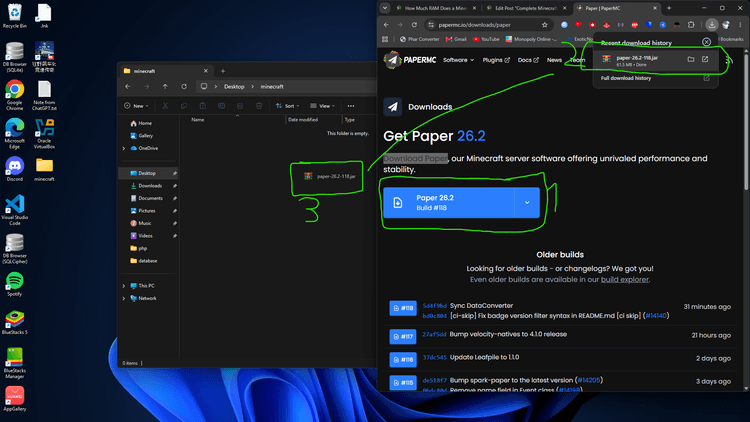
In order to download a Minecraft server jar file, you’ll have to choose your server software. We’ll be using PaperMC for this guide.
Head over to the Paper downloads and choose the correct Minecraft version for your server. Once downloaded, place this server jar in a folder. This folder will be used to contain your Minecraft server.

Once placed, create a file called eula.txt and write eula=true into it.


Next, rename your server jar to server.jar for simplicity.

2. Download and set up the correct Java version
In order to start your Minecraft server, you will need to install the correct Java version for it. Many computers have Java 8 installed, but modern Minecraft versions require Java 17 or newer.
- Minecraft 26.1 and newer: Requires Java 25.
- Minecraft 1.20.5 through 1.21.11: Requires Java 21.
- Minecraft 1.17 through 1.20.4: Requires Java 17.
- Minecraft 1.12 through 1.16.5: Requires Java 8.
I will be using Java 25 for my Minecraft 26.1 server.
Search for your Java version on Google or any other search engine and click the archive downloads by Oracle.

Use the Compressed Archive for your operating system (in my case it’s Windows) and click the download link.

Next, open the downloaded archive. You should see a folder inside of the archive, which is the Java Home. Extract this Java Home inside your Minecraft server folder and rename it to java for simplicity.
3. Create a file to start your Minecraft server
Once you’ve completed the previous steps, you should end up with an uninitialised Minecraft server on your computer. You will now need a command to start it.
Assuming you’re using Windows, create a file named start.cmd, right click, and edit it with Notepad.

If you have a custom startup command, paste it in start.cmd and close the file.
For everyone who doesn’t have a custom startup command, you will need to know your system specs. For a small Paper server, 2–4 GB is usually a sensible starting point. Make sure to leave enough RAM available for Windows and other applications. Since I have exactly 20 GB, I can safely allocate up to 10GB.
Copy your Minecraft folder address as text. You will use it in the startup command.

Use the following startup command:
"<MINECRAFT FOLDER ADDRESS>\java\bin\java.exe" -Xms<ALLOCATED RAM IN GB>G -Xmx<ALLOCATED RAM IN GB>G -jar server.jar --nogui
Since I have decided to allocate 4GB to my Minecraft server, and my Minecraft folder address is E:\Do not delete\Desktop\minecraft, my startup command will be:
"E:\Do not delete\Desktop\minecraft\java\bin\java.exe" -Xms1G -Xmx4G -jar server.jar --nogui
Once you’ve written your startup command inside start.cmd, save and exit.

All that’s left for you to do is double-click start.cmd, and there you have it! Your very own self-hosted Minecraft server.
If you get a prompt related to Windows Firewall blocking the process, allow it.
4. Port forward your Minecraft server
We’re not done yet! You will now have to port forward your Minecraft server so your friends can join it.
NOTE: Port forwarding is not always safe and attackers can make your computer lag by sending out DoS/DDoS attacks to your public IP. Learn more about Minecraft server DDoS attacks.
Go to the Windows Terminal and write ipconfig.
Once you’ve pressed enter, find your network adapter. Copy the Default Gateway by selecting it and right-clicking, then go to your browser and write it in your address bar. Also take note of the IPv4 address as you will later need it.


Log in to your router, and depending on the model, there should be a “Port Forwarding” or “Port Mapping” button under advanced settings.
Use the following settings:
- Name: give it any name. I’ll use “Minecraft server” for this example.
- Protocol: TCP
- Interface: WAN
- Internal IP: your local IPv4
- External port & Internal port: your Minecraft server port. Use 25565 if you’re unsure.

Save and apply the changes.
Once you’ve done this, you can start your Minecraft server by double-clicking start.cmd.
Since you’re hosting the Minecraft server, you can connect by using localhost to reduce latency a bit. Devices on the same network can use your Local IPv4 (e.g 192.168.0.222 in this example), while friends outside the network must use your public IPv4 which you can find on websites like WhatIsMyIP.com.
If port forwarding doesn’t work, you might be behind CGNAT. Budget Minecraft server hosting can be beneficial in this case.
Common problems
Minecraft server says “Unable to access jarfile server.jar”
- Causes: mismatched jarfile name
- Solutions: Make sure the
jarfileparameter corresponds to the name of your Minecraft server jar.
Friends can’t connect to my Minecraft server
- Causes: Minecraft server is offline, CGNAT, or incorrect port forwarding settings.
- Solutions: Make sure your Minecraft server is online and ensure port fowarding settings are correct. If you’re behind CGNAT and don’t want to configure a tunnel or request a public IPv4 from your ISP, switching to a Minecraft hosting provider is an easier alternative.
Minecraft server can’t keep up / “Is the server overloaded?”
- Causes: Slow CPU performance, excessive entities/chunks/plugins, insufficient resources, or the server becoming temporarily overloaded.
- Solutions: If you’re sure you’ve allocated enough RAM, your CPU might be too weak to run a Minecraft server for your needs. Renting a Minecraft server on SodiumNodes or using a more modern computer can solve the issue.
FAQs
How much RAM do I need for a Minecraft server?
For a small Paper or vanilla server, 2–4 GB is usually enough. Larger player counts, plugins, mods, and higher view distances may require more RAM.
Can I host a Minecraft server on my own PC?
Yes. You can self-host a Minecraft server on your own computer as long as it has enough CPU, RAM, storage, and upload bandwidth. You may also need to configure port forwarding.
What Java version do I need for a Minecraft server?
It depends on your Minecraft and server software version. Newer Minecraft releases require newer Java versions, while older releases may use Java 8, 11, 16, or 17.
What port does a Minecraft Java server use?
Minecraft Java Edition uses port 25565 by default. You can change this in server.properties if needed.
Do I need to port forward a Minecraft server?
Usually yes if you’re self-hosting and want players outside your home network to connect directly. Port forwarding may not work if your ISP uses CGNAT.
Why can’t my friends connect to my Minecraft server?
Common causes include incorrect port forwarding, Windows Firewall, the server being offline, the wrong IP address, or CGNAT.
Is it better to self-host or rent a Minecraft server?
Self-hosting gives you more control and can be cheaper if you already own suitable hardware. Renting is generally easier and avoids port forwarding, CGNAT, home-network exposure, and hardware management.
Can I make a Minecraft server without port forwarding?
Yes. You can use a Minecraft hosting provider or certain tunnelling services instead. Renting a server is usually the simplest option for beginners.
Is 4 GB RAM enough for a Minecraft server?
For many small vanilla or Paper servers, yes. Heavily modded servers, large player counts, or lots of plugins may need considerably more.
Can I run a Minecraft server and play Minecraft on the same PC?
Yes, provided your computer has enough CPU and RAM for both. Leave enough system resources available for Windows and the Minecraft client instead of allocating all available memory to the server.
What is the best Minecraft server software for beginners?
Paper is a strong choice for most Java Edition servers because it offers good performance, plugin support, and broad compatibility with Spigot plugins.
Is hosting a Minecraft server from home safe?
It can be done safely, but publicly hosting from home exposes a service on your network and may require sharing your public IP address. A hosted server generally offers better isolation and often includes DDoS protection.
Your Minecraft server, ready in seconds.
Why wait any longer?
With SodiumNodes, your server is deployed is 60 seconds away from being yours.
DDoS protection: Stay online during raid attacks.
AMD CPUs: No lag, even with several mods or plugins.
Custom Mod Support: Run Fabric, Forge, or Paper mods/plugins.
Friendly customer support: Real answers in under 10 minutes.